
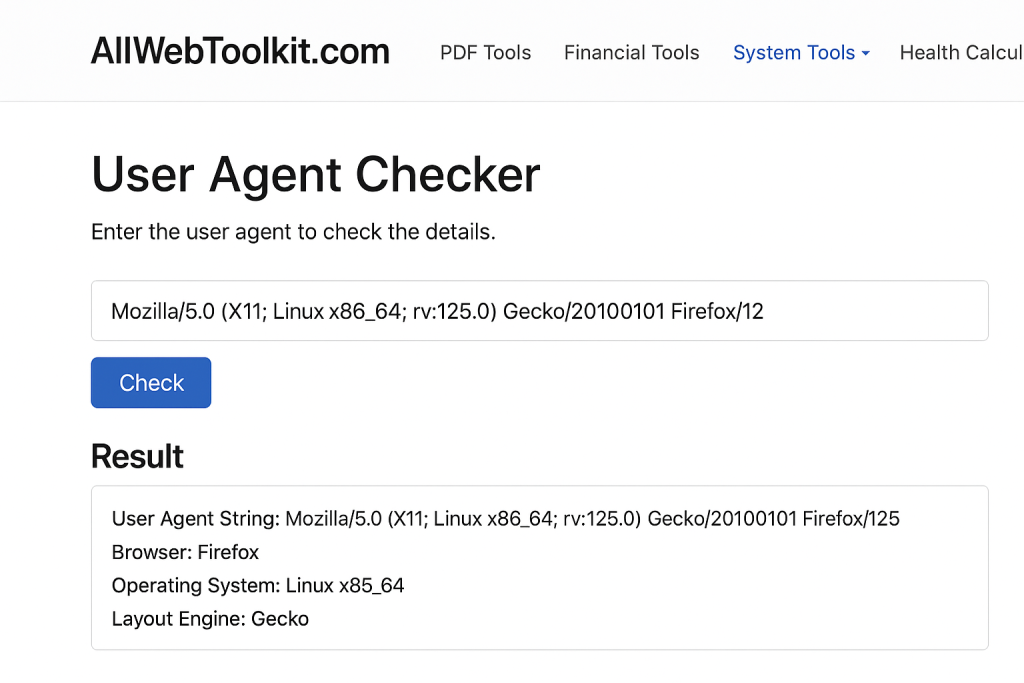
Every time you visit a website, your web browser introduces itself.
Before it even asks for the webpage, it sends a little piece of text to the website’s server. It’s like a digital business card. This “card” is called the user-agent string.
I first learned about this when I was trying to fix a bug on a website I was building. The site worked perfectly on my computer, but a client said it looked broken on their iPad. How was that possible? It was because their browser’s “business card” was different from mine, and the website was treating them differently based on that card.
Most people have never heard of a user-agent. But it’s a fundamental part of how you experience the web. It’s a short, cryptic-looking string of text, but it’s packed with information about you. Understanding what it is and what it says is a fascinating peek behind the curtain of the internet.
What is a User-Agent? The “Bouncer at the Club” Analogy
Think of a website as an exclusive club. When you walk up to the door, the bouncer (the website’s server) wants to know who you are.
Your user-agent is your answer. It’s a single line of text that says, essentially:
“Hi, I’m a Chrome browser running on a Windows 10 computer with a 64-bit processor.”
Or:
“Hey, I’m a Safari browser running on an iPhone with iOS version 16.5.”
Based on this information, the bouncer (the server) can decide how to treat you. It might send you to a special mobile-optimized version of the club, or it might serve you a different menu if it knows you’re using a specific type of device.
How to See Your Own User-Agent
You don’t have to guess what your digital business card says. You can read it right now.
- Your Next Step: The easiest way is to use a simple online tool. Go to a User-Agent Information page. It will instantly read the user-agent string that your browser is sending out and display it for you, often breaking it down into easy-to-understand parts.
You’ll see something that looks a bit like this:
Mozilla/5.0 (Windows NT 10.0; Win64; x64) AppleWebKit/537.36 (KHTML, like Gecko) Chrome/107.0.0.0 Safari/537.36
It looks like gibberish, but let’s decode it.
What Your User-Agent Is Actually Saying
That long string is made up of different pieces, each providing a clue about your setup.
- Mozilla/5.0: This is a historical relic. For compatibility reasons, almost every browser includes this piece, even if they’re not Mozilla. You can mostly ignore it.
- (Windows NT 10.0; Win64; x64): This is the important part about your system. It tells the website you are on a Windows 10 computer with a 64-bit architecture. If you were on a Mac, it might say (Macintosh; Intel Mac OS X 10_15_7).
- AppleWebKit/537.36: This tells the website which “rendering engine” your browser uses to draw the webpage. Many modern browsers, including Chrome and Safari, are based on WebKit.
- Chrome/107.0.0.0: This is your actual browser and its version number. This is very useful for web developers to know.
- Safari/537.36: This is another compatibility token. Because Chrome’s engine is related to Safari’s, it includes this to make sure it works on websites designed for Safari.
Why Does This Matter to You?
Okay, so your browser is introducing itself. Why should you care?
1. A Better Web Experience: This is the main, positive use case. When a website reads your user-agent and sees that you’re on an iPhone, it can automatically serve you the mobile-optimized version of its site, with bigger buttons and a simpler layout. It’s how the web adapts to the device you’re using.
2. Analytics and Tracking: This is the less positive side. Websites collect this data. They know what percentage of their users are on Macs vs. Windows, or how many are visiting from a mobile device. This is generally harmless and helps them improve their site. However, combined with other data points like your IP address, it can be used to create a more detailed profile of you for advertising purposes.
3. Bypassing Restrictions (An Advanced Trick): Sometimes, a website will block certain browsers or devices. For example, a site might say, “This only works on Google Chrome.” Using a browser extension, you can actually “spoof” or fake your user-agent. You can make your Firefox browser pretend to be Chrome, which can sometimes trick the website into letting you in.
Your user-agent is a small but essential piece of your digital identity. It’s the silent handshake that happens every time you load a webpage. It’s a reminder that even in the vast, anonymous-seeming world of the internet, you’re never truly invisible.

