
It’s one of the most frustrating first-world problems. You’re paying a small fortune every month for “super-fast” internet, but your Netflix is still buffering, your Zoom calls are choppy, and downloading a big file feels like it’s happening in slow motion.
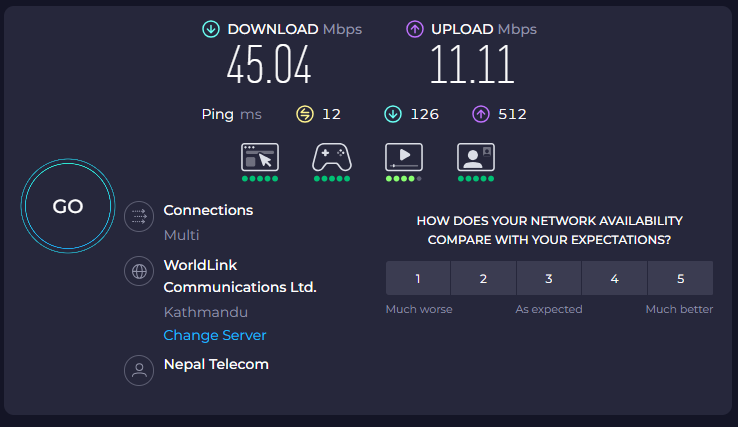
So you do what any sane person would do. You go to an internet speed test website, hit the big “GO” button, and wait for the results. And when the numbers come back, they are… disappointing. They are nowhere near the “up to 500 Mbps!” that your provider promised you in big, flashy letters.
My first reaction used to be pure rage. I’d want to pick up the phone and yell at my internet service provider (ISP).
But after years of troubleshooting my own and my friends’ Wi-Fi, I’ve learned that the problem is often not the ISP. The problem is usually something happening inside your own house. Before you spend an hour on hold with customer service, take ten minutes to try these five simple fixes. They can have a surprisingly huge impact on your speed test results.
First, Get an Honest Baseline
Before you start changing things, you need to know your starting point.
- Your First Step: Go to a trusted Internet Speed Test tool. Run the test once or twice to get an average reading. Write down the two important numbers: your download speed (how fast you can pull data from the internet) and your upload speed (how fast you can send data to the internet).
Okay, you have your disappointing numbers. Let’s try to fix them.
Fix #1: Move Closer to Your Router (Or Move Your Router Closer to You)
This sounds almost insultingly simple, but it is the number one cause of slow Wi-Fi.
Wi-Fi signals are just radio waves. They get weaker the farther they have to travel. And they hate, hate, hate going through walls. Especially walls with plumbing (like in a bathroom) or thick insulation.
The Slow Way: You’re trying to work from your bedroom at the far end of the house, while your Wi-Fi router is tucked away in the living room closet. The signal has to travel through three walls to get to you.
The Fix:
- The Easy Test: Take your laptop and walk into the same room as your router. Sit a few feet away from it and run the speed test again. I am willing to bet your numbers will be dramatically higher.
- The Real Solution: If you can, move your router to a more central location in your house. Get it out of a closet or off the floor. The ideal spot is up high, like on a bookshelf, and in a central hallway where the signal has the clearest possible path to all your rooms.
Fix #2: The Golden Rule of Tech Support: Turn It Off and On Again
I know, I know. It’s a cliché. But it works. Your Wi-Fi router is a tiny computer, and just like any computer, it can get bogged down over time. Its memory gets filled up, and it starts to get slow and buggy.
The Slow Way: Your router has been running continuously for the last 8 months without a break.
The Fix: Unplug your router from the power outlet. Go make a cup of coffee. Wait a full 60 seconds. Then, plug it back in. It will take a few minutes to boot back up and reconnect to the internet. Once it’s back online, run the speed test again. This simple reboot often clears out the gunk and can give you a significant speed boost.
Fix #3: Close the Bandwidth Hogs
Your internet connection is like a pipe. There’s only so much water that can flow through it at one time. If one person in your house is using a firehose, there’s only a trickle left for everyone else.
The Slow Way: You’re trying to run a speed test while your roommate is streaming a 4K movie in the other room, your laptop is downloading a huge software update in the background, and your phone is automatically backing up all your photos to the cloud.
The Fix: Before you run the test, temporarily shut down the bandwidth hogs. Pause any big downloads. Close any streaming apps. If you have multiple devices connected to your Wi-Fi, disconnect the ones you’re not using. You want to give the device you’re testing on the clearest possible path to the internet.
Fix #4: Use the 5 GHz Wi-Fi Band
Most modern routers are “dual-band,” which means they broadcast two separate Wi-Fi networks at the same time: a 2.4 GHz network and a 5 GHz network.
- 2.4 GHz: This is an older, slower, and more crowded highway. It’s better at going through walls, but it’s much more susceptible to interference from your neighbors’ Wi-Fi, your microwave, and other devices.
- 5 GHz: This is a newer, much faster, and less crowded highway. It’s not as good at penetrating walls, but if you’re in the same room as your router, it will almost always give you a faster speed.
The Fix: Look at the available Wi-Fi networks on your device. You’ll probably see two with similar names, like MyHomeWiFi and MyHomeWiFi_5G. If you’re close enough to your router, always connect to the _5G network for the best possible speeds.
Fix #5: Go Wired (The Ultimate Test)
If you’ve tried all of the above and your speeds are still slow, you need to do one final test to figure out if the problem is your Wi-Fi or your actual internet service.
The Fix: Find an Ethernet cable (it looks like a chunky phone cord). Plug one end into your computer and the other end directly into one of the LAN ports on the back of your router. This temporarily bypasses your Wi-Fi completely. Now, run the speed test one last time.
If your wired speed is dramatically faster than your best Wi-Fi speed, it means your internet service is fine, but your Wi-Fi signal is the bottleneck.
If your wired speed is still slow and not close to what you’re paying for, now you have a real reason to call your ISP. You can confidently tell them, “I’ve tested my connection while plugged directly into the router, and I’m only getting 50 Mbps on my 500 Mbps plan.” This shows them you’ve done your homework and they won’t be able to just blame your Wi-Fi.

