
I got a text message the other day. It was from my bank—or at least, it looked like it was from my bank. It said there was a “security alert” on my account and that I needed to click a link to verify my identity.
The link looked legit. The message seemed urgent. My heart started beating a little faster. I almost clicked it.
But then I paused. I took a breath and decided to do a few simple checks first. And thank goodness I did. That website was a very convincing, very fake scam designed to steal my login information.
In our world, the line between a real website and a fake one is getting terrifyingly blurry. Scammers are experts at creating a false sense of security. But they almost always leave behind a few subtle clues. You just need to know where to look.
Before you ever enter a password, a credit card number, or any personal information into a website, take 30 seconds to run through this simple security checklist.
Step 1: Look for the Lock (The HTTPS Check)
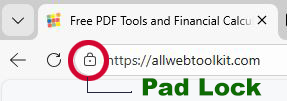
This is the most basic, non-negotiable first step.
Look at the address bar in your web browser, right next to the website’s address. You should see a small padlock icon.
If you see the padlock, it means the connection between your browser and that website is encrypted.
If you see a “Not Secure” warning, it means your connection is wide open.
What does “encrypted” mean? Imagine you’re sending a secret message to a friend. Encryption is like putting that message in a locked box before you send it. Only you and your friend have the key. Anyone who intercepts the box can’t read the message.
An unencrypted (“Not Secure”) connection is like sending that secret message on a postcard. Anyone who intercepts it—hackers, your internet service provider, anyone on the same public Wi-Fi network—can read it in plain text.
The Rule: If you don’t see the padlock, do not enter any sensitive information. Period. This is especially true if it’s a shopping site or a login page. A missing lock is a massive red flag.
Step 2: The “Whois” Check (Is This Website a Ghost?)
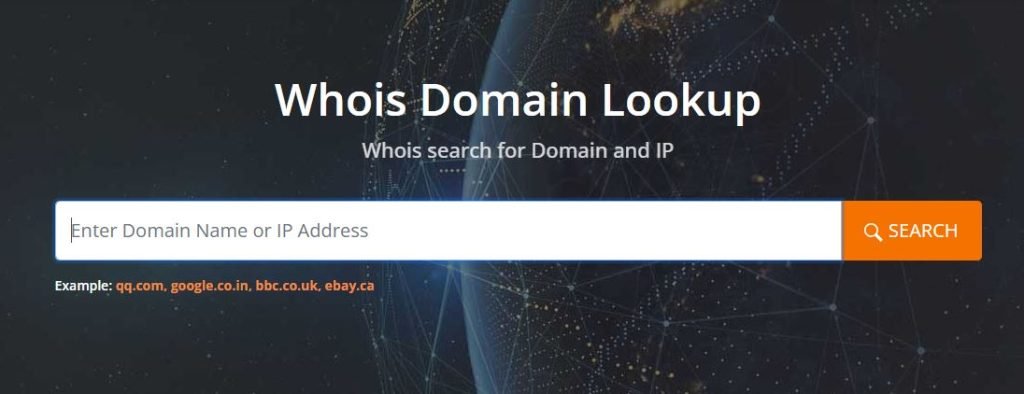
Okay, so the website has a lock. That’s a good start. But all that lock means is that your connection is secure. It doesn’t mean the person on the other end is trustworthy. It’s like having a secure phone line to a scammer—the line is safe, but the person you’re talking to is still trying to rob you.
So, how do you check who actually owns the website?
Every website domain (yourwebsite.com) has to be registered, and that registration information is often public. You can look it up.
The Problem: You’re on a website that looks like a legitimate shoe store, but something feels a little off. The prices seem too good to be true.
The Solution: Use a Whois Lookup tool. You just type in the website’s address (e.g., askfinanceguru.com), and it will pull up the public registration records.
Here’s what you’re looking for:
- Creation Date: Was this website created yesterday? That’s a huge red flag. Legitimate businesses usually have domains that are years old.
- Registrant Information: Does it list a real company name and address, or is all the information hidden behind a “privacy service”? While many legitimate sites use privacy services, it’s something to be aware of.
If the Whois information shows the site was created three days ago by an anonymous registrant, you should probably close the tab.
Step 3: The Deep Dive (The Website Security Check)
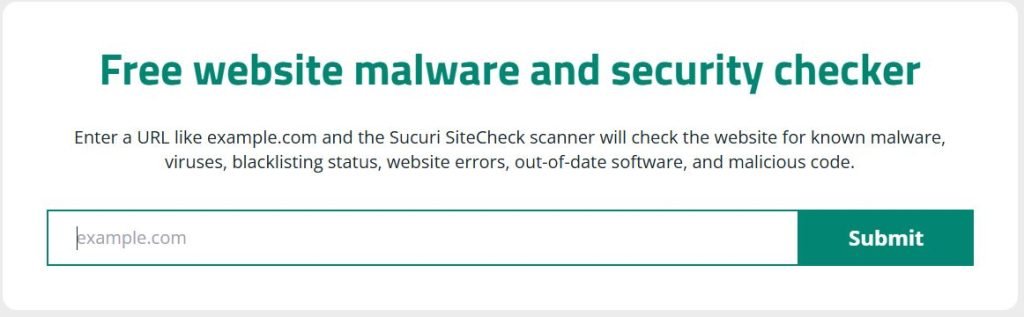
The padlock and the Whois info give you a good baseline. But if you’re still feeling unsure, you can do a deeper, more technical check without needing to be a tech expert.
There are powerful online tools that can perform a full security scan of a website in seconds. They look for things you can’t see.
- Your Next Step: If you want the ultimate peace of mind, use a comprehensive Website Security Checker. This kind of tool will scan the site for:
- SSL Certificate Health: It checks to make sure that padlock is not just there, but that it’s properly configured and hasn’t expired. We have a whole other guide that explains why SSL certificates are important for every website.
- Malware and Blacklists: It checks to see if the site is on any known blacklists for hosting malware, phishing scams, or other nasty stuff.
- Server Vulnerabilities: It looks for common security holes in the website’s server configuration that could be exploited by hackers.
The results of this scan will give you a clear “safe” or “not safe” signal.
Trusting a website is a big deal. You’re handing over your private information and trusting them to protect it. Don’t just assume a professional-looking design means a site is safe. Take the extra 30 seconds. Check for the lock, look up the owner, and run a quick security scan. It’s a simple habit that can save you from a world of trouble.

